
Introduction: Why Integrate Business Central with Dataverse?
TLDR;
Business Central integration with Dataverse offers two main approaches:
Virtual Tables:

Simpler setup with real-time data access
No data duplication, with Business Central as single source of truth
Limited compatibility with Microsoft Fabric
Performance may be slower as data is accessed via APIs

Data Synchronization:

More complex setup but better performance
Data available offline with full Fabric compatibility
Creates data duplication with synchronization delays
Requires more maintenance and monitoring

Setup requires connecting Business Central to Dataverse through Assisted Setup. For Virtual Tables, mark desired APIs as visible in Dataverse. For Data Synchronization, use standard mappings or create custom ones using AL Table Proxy Generator for custom tables. Choose your approach based on your specific needs for data accessibility, performance, and compatibility with other Microsoft tools.
Business processes rarely exist in isolation. Organizations using Dynamics 365 Business Central for their core business operations often need to share that valuable data with other systems and applications. This is where Microsoft Dataverse comes into play.
Dataverse serves as Microsoft’s common data platform – a secure, cloud-based storage solution that acts as a centralized repository for business data. By integrating Business Central with Dataverse, organizations can:
- Create a single source of truth for business data
- Enable seamless data sharing across Microsoft ecosystem applications
- Extend Business Central functionality with Power Apps and Power Automate
- Connect business data with analytics services like Microsoft Fabric
- Leverage Azure services and connectors for enhanced functionality
- Reduce data silos and duplicate data entry
- Build custom applications that utilize Business Central data without direct database access
In this post, we’ll explore two primary methods of integration: Virtual Tables and Data Synchronization. We’ll cover the benefits and limitations of each approach, helping you decide which method best suits your specific business needs.
What is Dataverse?
Before diving into integration methods, let’s understand what Dataverse actually is.
Microsoft Dataverse (formerly known as Common Data Service) is a cloud-based storage platform that securely stores and manages data used by business applications. Think of it as the foundational data layer for Microsoft’s Power Platform (Power Apps, Power BI, Power Automate, and Power Virtual Agents) and Dynamics 365 applications.
Key features of Dataverse include:
- Structured data storage with a standardized schema
- Built-in data validation and business logic capabilities
- Sophisticated security model with role-based access control
- Integration with Microsoft’s identity and access management
- API access for developers
- Common data model with standardized entity definitions
This data platform makes it possible to unify data across previously disconnected systems, creating new opportunities for insights and process automation.
Choosing the Right Integration Approach: Data Synchronization vs. Virtual Tables
When integrating Business Central with Dataverse, you have two primary options: Data Synchronization and Virtual Tables. Each approach has distinct advantages and limitations that make it suitable for different scenarios. Understanding these differences is crucial for selecting the right strategy for your organization’s needs.
Virtual Tables: Real-Time Access Without Data Duplication
Pros:
- Simple Setup: Virtual tables are relatively easy to configure compared to data synchronization
- Real-Time Data Access: Direct connection to Business Central ensures you’re always accessing the most current data
- Single Source of Truth: Data remains solely in Business Central, eliminating duplication and potential inconsistencies
- Data Ownership: Maintains clear data ownership within Business Central
- Reduced Storage Requirements: No additional storage needed in Dataverse
- Change Management: Updates to data structure only need to be performed once in Business Central
Cons:
- Limited Compatibility: Cannot be used with certain Microsoft tools like Microsoft Fabric
- Connectivity Dependent: Requires Business Central to be online and accessible at all times
- Performance Concerns: May experience slower performance due to API-based access for every data request
- API Limits: Subject to Business Central API throttling and request limits
- Limited Advanced Dataverse Features: Some Dataverse-specific features may not be fully supported
- Can only show data from one company
Data Synchronization: Offline Access with Performance Benefits
Pros:
- Offline Availability: Data remains accessible in Dataverse even when Business Central is unavailable
- Enhanced Performance: Direct access to data stored in Dataverse provides faster query response times
- Tool Compatibility: Full compatibility with Microsoft Fabric and other tools that require native Dataverse tables
- Advanced Dataverse Features: Full access to Dataverse capabilities like complex relationships and business rules
- Reduced Load on Business Central: Queries don’t impact Business Central performance
- Can sync data from multi companies
Cons:
- More Complex Setup: Requires more advanced configuration and mapping compared to virtual tables
- Data Duplication: Creates copies of data, requiring additional storage and potentially causing consistency issues
- Synchronization Delay: Inherent lag time between data updates in Business Central and their reflection in Dataverse
- Increased Maintenance: Requires monitoring of synchronization processes and error handling
- Data Governance Challenges: Creates questions about which system is the authoritative source for specific data points
When to Choose Virtual Tables
Virtual tables are typically the better choice when:
- Real-time data accuracy is absolutely critical
- You have a clear need to maintain Business Central as the single source of truth
- Your integration is relatively straightforward and doesn’t require complex data transformations
- You won’t be using tools like Microsoft Fabric that require native Dataverse tables
- Business Central has reliable uptime and performance
- You have concerns about data governance with duplicated data
- You need a quicker, simpler implementation
When to Choose Data Synchronization
Data synchronization is generally preferable when:
- You need data access even when Business Central is unavailable
- Performance is a priority, especially for data-intensive operations
- You plan to use Microsoft Fabric or other tools that require native Dataverse tables
- Your business can tolerate slight delays in data updates
- You need to leverage advanced Dataverse features
- You want to reduce query load on your Business Central environment
- Long-term integration stability outweighs implementation complexity
Setting Up Your Business Central-Dataverse Connection
Before diving into either integration approach, you’ll need to establish the initial connection between Business Central and Dataverse. Here’s how to do it:
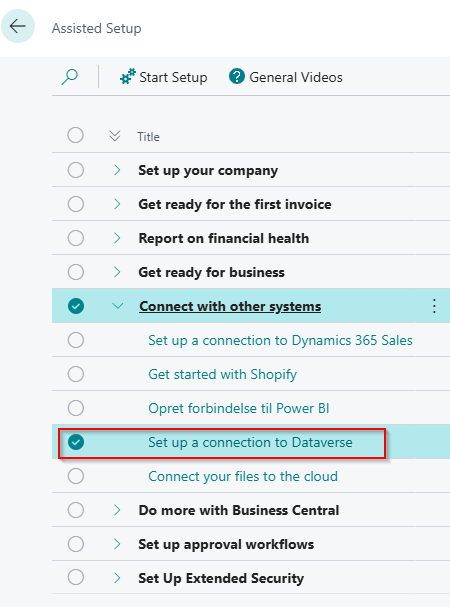
Start the Setup Process:
- Navigate to Assisted Setup in Business Central
- Choose Set up a connection to Dataverse
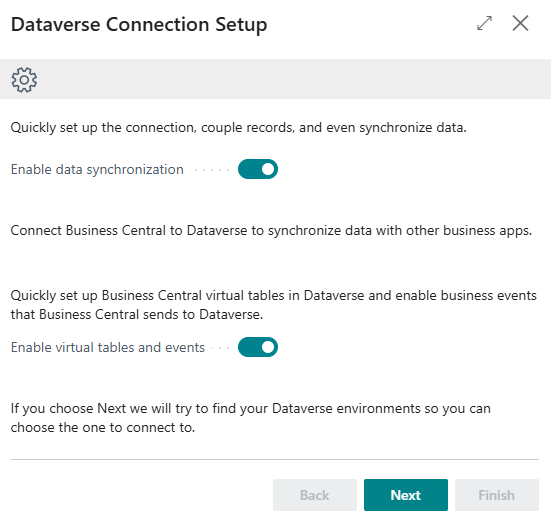
Choose Your Integration Method:
- Select either Enable data synchronization or Enable virtual tables and events or both based on your needs
- This decision determines your integration approach moving forward
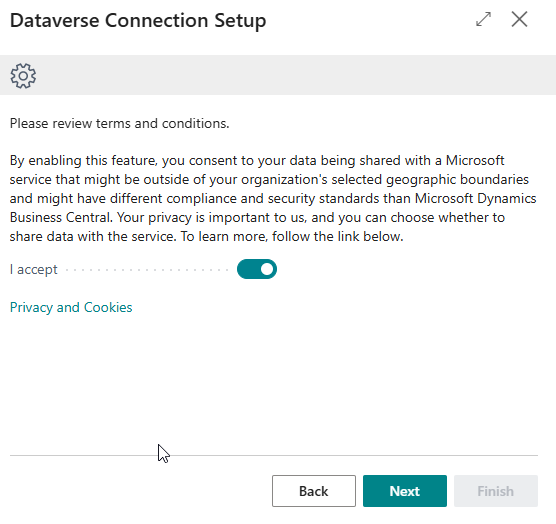
- Accept Terms and Conditions:
- Review and accept the legal terms for the integration
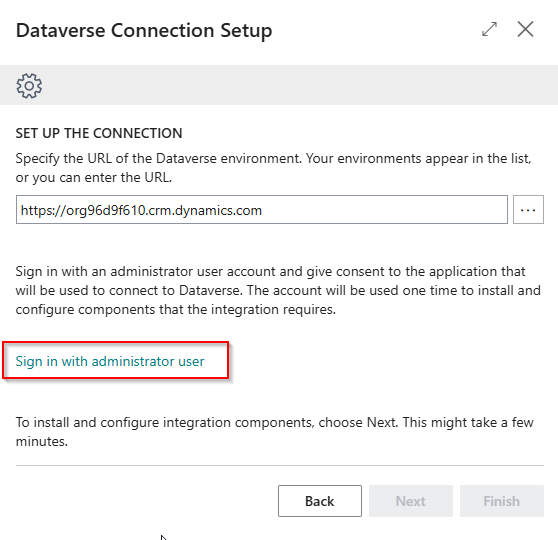
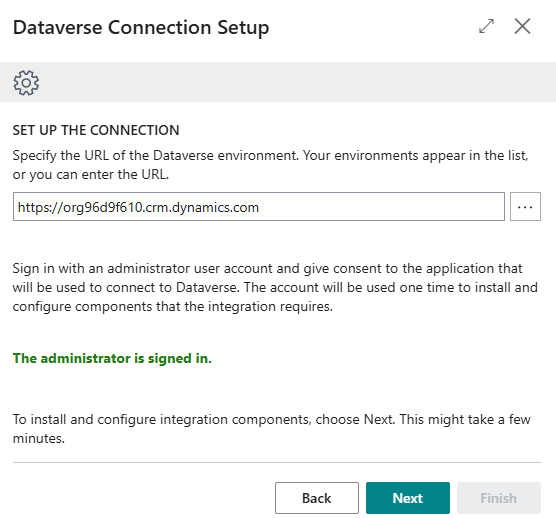
Connect to Your Dataverse Environment:
- Click Sign in with an administrator account
- Authenticate with an account that has admin privileges in both systems
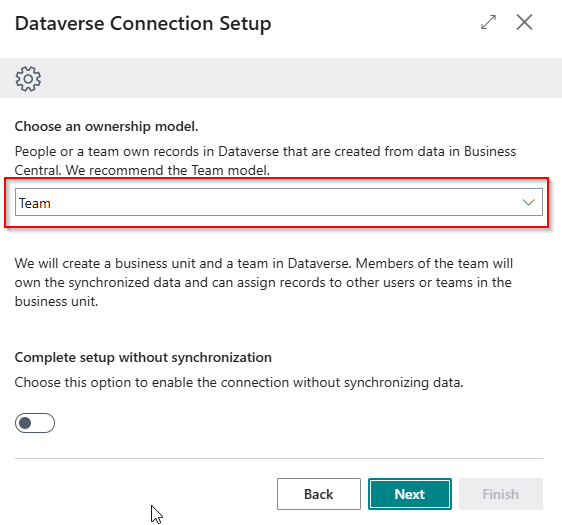
Select Data Model:
- Choose between Team or Person model (recommend leaving as Team for most scenarios)
- Complete Setup Based on Your Integration Choice: For Data Synchronization:
- You’ll have the option to Complete setup without synchronization if you want to configure mappings first
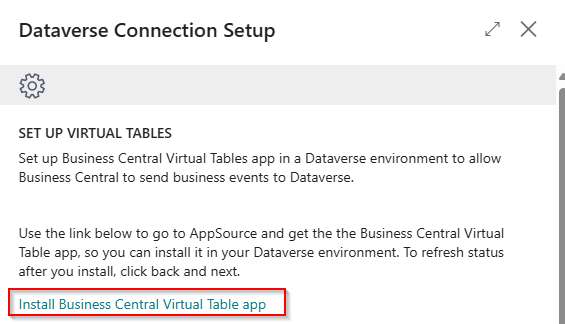
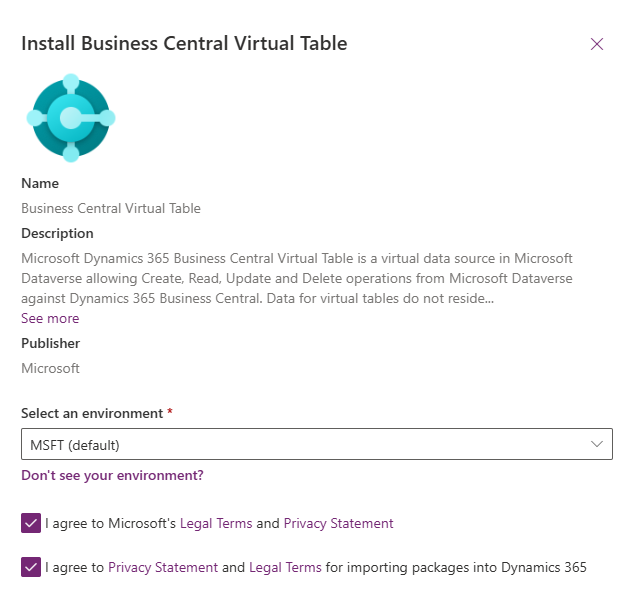
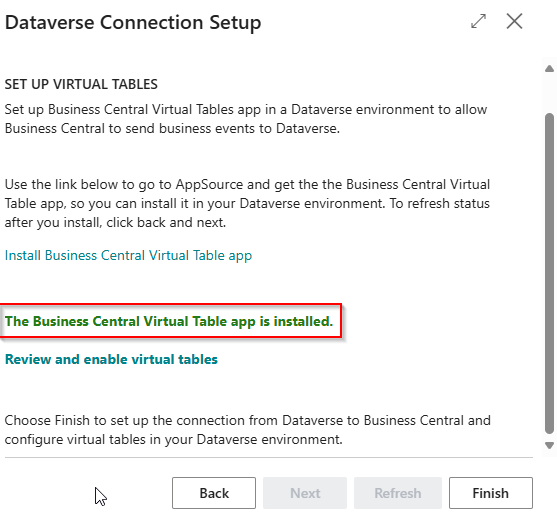
- You’ll need to install the Business Central Virtual Table extension to your Power Platform
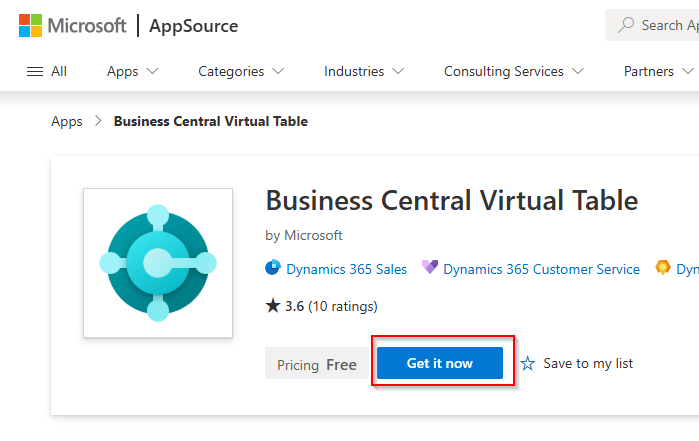
- Click the provided link and select Get it now
- Choose which Power Platform environment to install the extension to
- Confirmation appears as green text stating The Business Central Virtual Table app is installed
- Connection Confirmation:
- Once completed, your Business Central instance is now connected to Dataverse
With this connection established, you’re ready to extend what’s available in Dataverse, which we’ll cover in the next section.
Extending Business Central Data with Virtual Tables
After establishing your connection between Business Central and Dataverse, you’re ready to make your Business Central data available through virtual tables. The process leverages Business Central’s API pages, transforming them into accessible virtual tables within Dataverse.
Setting Up Virtual Tables
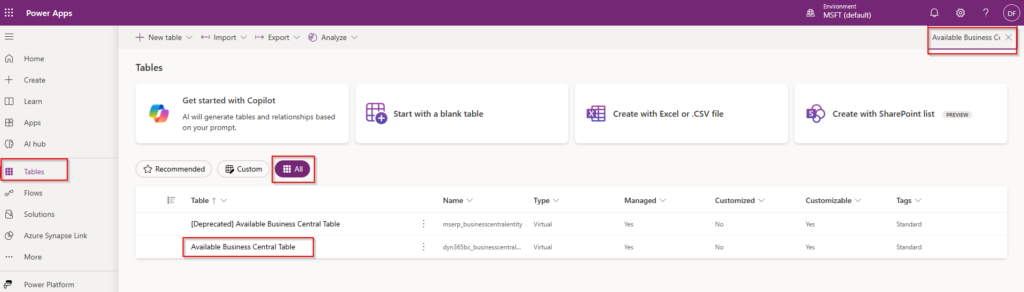
- Access Your Power Platform Environment:
- Navigate to the Power Platform environment you’ve linked with Business Central
- Go to Tables in the left navigation menu
- Select All to view all available tables
- Find Available Business Central Tables:
- In the search bar, type “Available Business Central Table”
- Open this table to reveal all potential virtual table connections
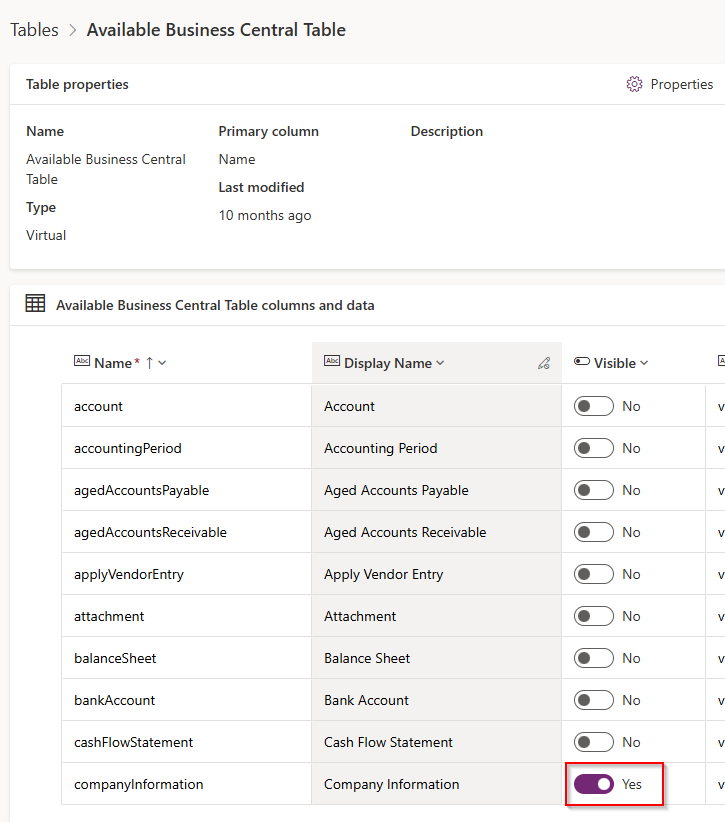
- Enable Desired API Pages as Virtual Tables:
- Review the comprehensive list of Business Central API pages that can be exposed as virtual tables
- For each API you want to access in Dataverse, simply mark it as Visible
- This action automatically creates a corresponding virtual table in Dataverse
- Access Your Virtual Tables:
- Once marked as visible, virtual tables become immediately available for use in your Dataverse environment
- These tables provide direct, real-time access to Business Central data through the API layer
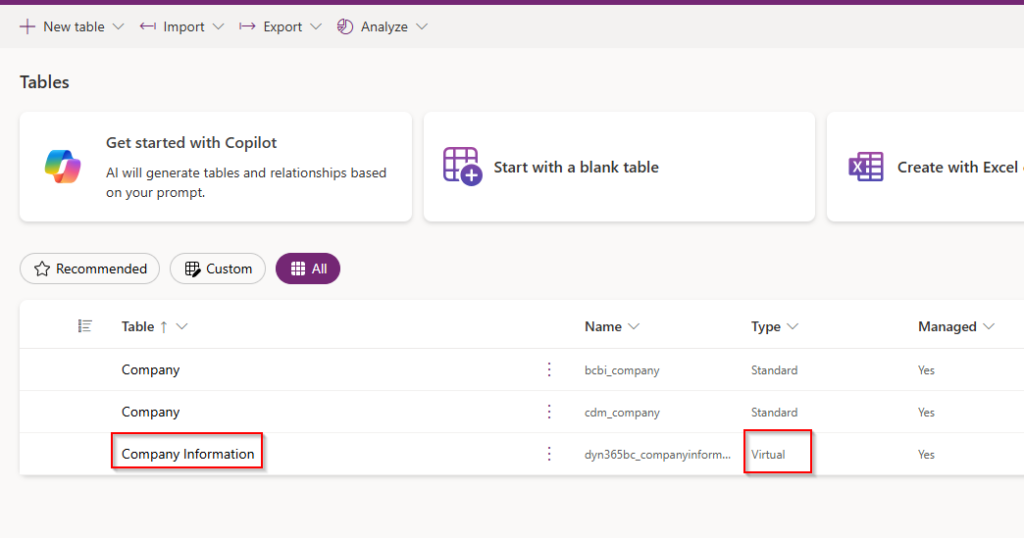
The beauty of this approach is its simplicity – with just a few clicks, you can expose your Business Central data through virtual tables without complex synchronization setup or data duplication. Each virtual table maintains a live connection to Business Central, ensuring that any data operations performed through Dataverse are immediately reflected in your Business Central environment.
Setting Up Data Synchronization Between Business Central and Dataverse
While virtual tables offer simplicity, data synchronization provides offline access, better performance, and compatibility with tools like Microsoft Fabric. Let’s explore how to set up this more comprehensive integration approach.
Understanding Standard Integrations
Business Central includes several out-of-the-box table synchronizations with Dataverse:
- View Standard Integration Mappings:
- Navigate to Dataverse Connection Setup
- Select the Integration tab
- Choose Integration Table Mappings
- Here you’ll see all standard integrations that synchronize with Dataverse’s CRM tables
- Click on Field Mapping to examine which fields are mapped and their synchronization direction (Bidirectional or one-way)
These standard integrations work well if you only need to synchronize with Dataverse’s default CRM tables. However, for custom business data, you’ll need to create custom synchronization mappings.
Creating Custom Table Synchronization
To synchronize data from custom Business Central tables to Dataverse, follow these steps:
Step 1: Create a Custom Table in Dataverse
- Create a new table in Dataverse with the fields you want to synchronize
- For example, create a table called “ItemSync” with columns like “No.” and “Description”
Step 2: Set Up App Registration in Azure
- Go to portal.azure.com
- Create a new App Registration:
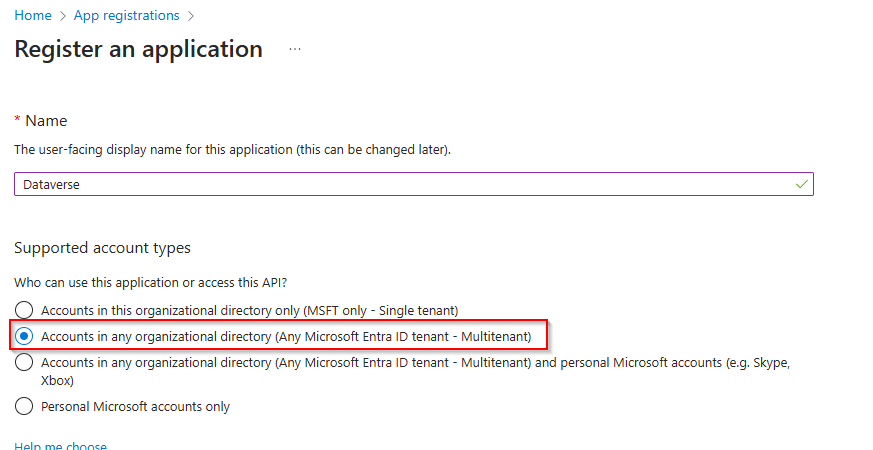
- Ensure it’s configured as multitenant
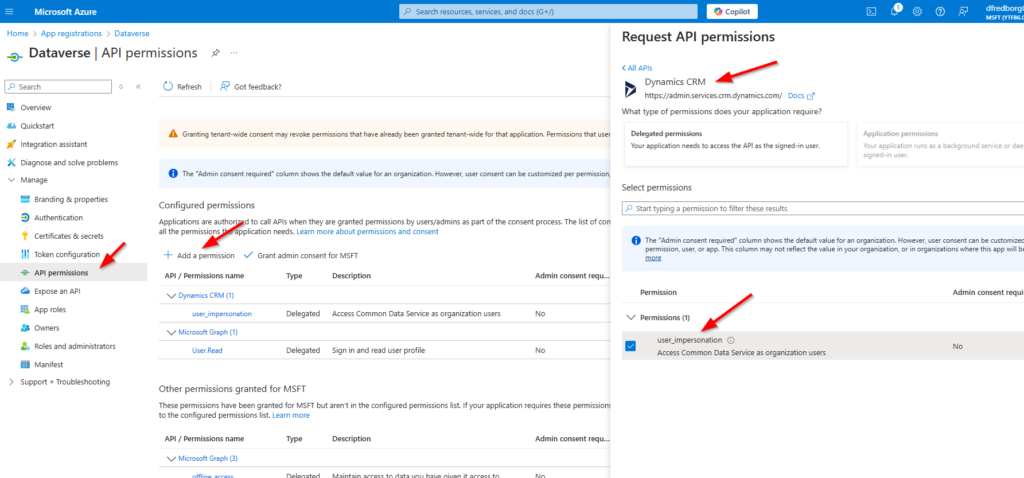
- Under API Permissions, grant user_impersonation on Dynamics CRM
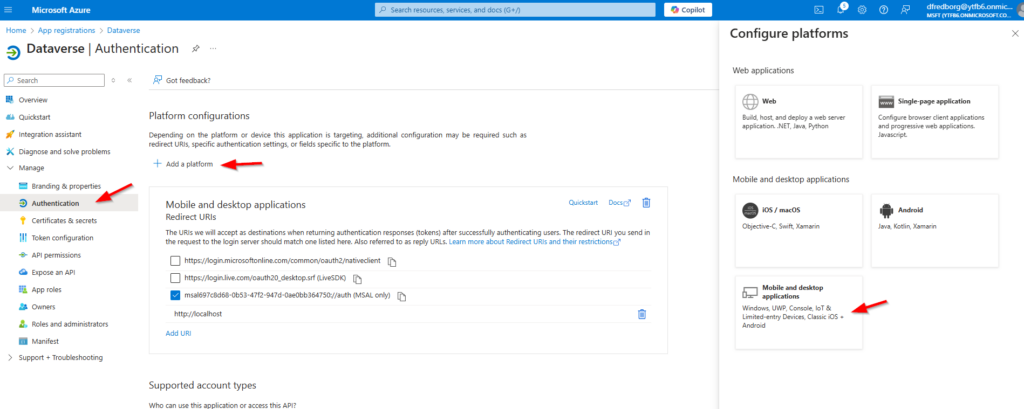
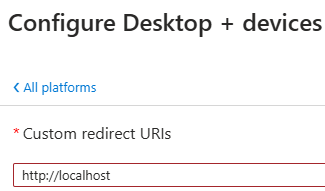
- Configure authentication:
- Go to Authentication
- Choose Add platform
- Select Mobile and desktop applications
- Add the redirect URL: http://localhost
- Copy your Application (client) ID from the Overview page (you’ll need this for the next step)
Step 3: Generate AL Table Proxy
- Use the AL Table Proxy Generator (altpgen) tool to create the necessary AL code:
- This tool can be found in your VS Code extensions directory:
C:\Users\<username>\.vscode\extensions\ms-dynamics-smb.al-15.0.1338262\bin\win32\altpgen
- This tool can be found in your VS Code extensions directory:
- Open PowerShell and navigate to the altpgen directory
- Run the command with your specific parameters:
.\altpgen -project:"ProjectPath" -packagecachepath:"path\.alpackages" -serviceuri:"tenanturl" -clientid:"Client ID" -redirecturi:"http://localhost" -entities:<dataverse_tables> -baseid:50100 -tabletype:CDSExample:
.\altpgen -project:"C:\Repos\private\demo" -packagecachepath:"C:\Repos\private\demo\.alpackages" -serviceuri:"https://org96d9f610.crm.dynamics.com/" -clientid:697c8d68-0b53-47f2-947d-0ae0bb364750 -redirecturi:"http://localhost" -entities:crd41_itemsync -baseid:50100 -tabletype:CDSThis command generates an AL table object in your project with all the fields from your Dataverse table. My example looks as follows:
table 50105 "CDS crd41_ItemSync"
{
    ExternalName = 'crd41_itemsync';
    TableType = CDS;
    Description = 'ItemSync';

    fields
    {
        field(1; crd41_ItemSyncId; GUID)
        {
            ExternalName = 'crd41_itemsyncid';
            ExternalType = 'Uniqueidentifier';
            ExternalAccess = Insert;
            Description = 'Unique identifier for entity instances';
            Caption = 'ItemSync';
        }
        field(2; CreatedOn; Datetime)
        {
            ExternalName = 'createdon';
            ExternalType = 'DateTime';
            ExternalAccess = Read;
            Description = 'Date and time when the record was created.';
            Caption = 'Created On';
        }
        field(4; ModifiedOn; Datetime)
        {
            ExternalName = 'modifiedon';
            ExternalType = 'DateTime';
            ExternalAccess = Read;
            Description = 'Date and time when the record was modified.';
            Caption = 'Modified On';
        }
        field(25; statecode; Option)
        {
            ExternalName = 'statecode';
            ExternalType = 'State';
            ExternalAccess = Modify;
            Description = 'Status of the ItemSync';
            Caption = 'Status';
            InitValue = " ";
            OptionMembers = " ",Active,Inactive;
            OptionOrdinalValues = -1, 0, 1;
        }
        field(27; statuscode; Option)
        {
            ExternalName = 'statuscode';
            ExternalType = 'Status';
            Description = 'Reason for the status of the ItemSync';
            Caption = 'Status Reason';
            InitValue = " ";
            OptionMembers = " ",Active,Inactive;
            OptionOrdinalValues = -1, 1, 2;
        }
        field(29; VersionNumber; BigInteger)
        {
            ExternalName = 'versionnumber';
            ExternalType = 'BigInt';
            ExternalAccess = Read;
            Description = 'Version Number';
            Caption = 'Version Number';
        }
        field(30; ImportSequenceNumber; Integer)
        {
            ExternalName = 'importsequencenumber';
            ExternalType = 'Integer';
            ExternalAccess = Insert;
            Description = 'Sequence number of the import that created this record.';
            Caption = 'Import Sequence Number';
        }
        field(31; OverriddenCreatedOn; Date)
        {
            ExternalName = 'overriddencreatedon';
            ExternalType = 'DateTime';
            ExternalAccess = Insert;
            Description = 'Date and time that the record was migrated.';
            Caption = 'Record Created On';
        }
        field(32; TimeZoneRuleVersionNumber; Integer)
        {
            ExternalName = 'timezoneruleversionnumber';
            ExternalType = 'Integer';
            Description = 'For internal use only.';
            Caption = 'Time Zone Rule Version Number';
        }
        field(33; UTCConversionTimeZoneCode; Integer)
        {
            ExternalName = 'utcconversiontimezonecode';
            ExternalType = 'Integer';
            Description = 'Time zone code that was in use when the record was created.';
            Caption = 'UTC Conversion Time Zone Code';
        }
        field(34; crd41_No; Text[850])
        {
            ExternalName = 'crd41_no';
            ExternalType = 'String';
            Description = '';
            Caption = 'No.';
        }
        field(35; crd41_Description; Text[100])
        {
            ExternalName = 'crd41_description';
            ExternalType = 'String';
            Description = '';
            Caption = 'Description';
        }
    }
    keys
    {
        key(PK; crd41_ItemSyncId)
        {
            Clustered = true;
        }
        key(Name; crd41_No)
        {
        }
    }
    fieldgroups
    {
        fieldgroup(DropDown; crd41_No)
        {
        }
    }
}
Step 4: Deploy and Map the Tables
- Deploy the generated table to your Business Central environment
- Return to the Integration Table Mappings page and click Mapping
- Select New Table Mapping
- Configure the mapping:
- Give your integration a name
- In the Table field, select which Business Central table you wish to synchronize
- In the Integration Table field, select your newly created integration table
- Set the Integration Table Modified On Field Name
- Choose synchronization direction (bidirectional or one-way)
- Map the individual fields between tables
- Save your mapping
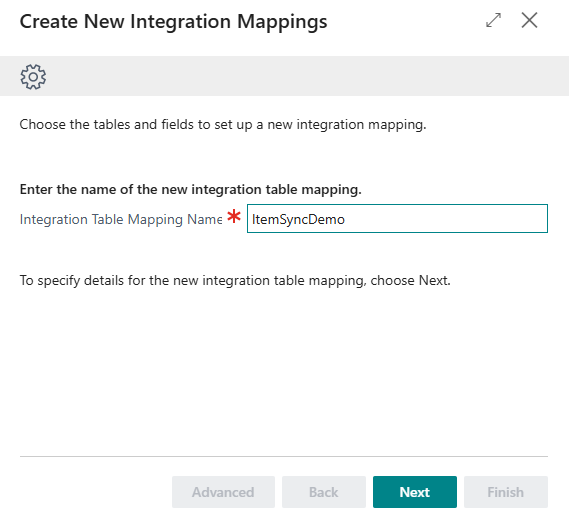
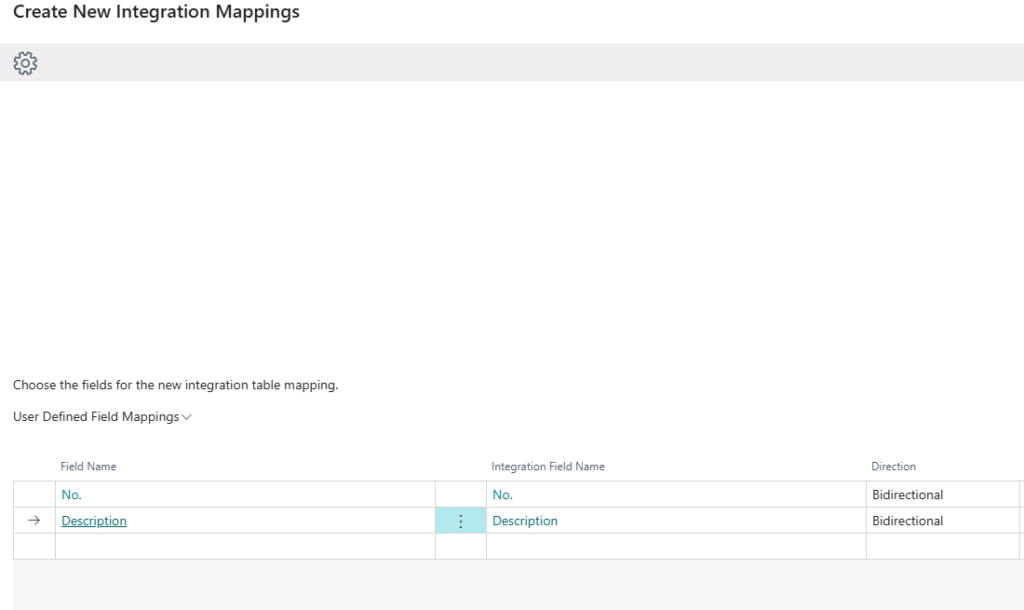
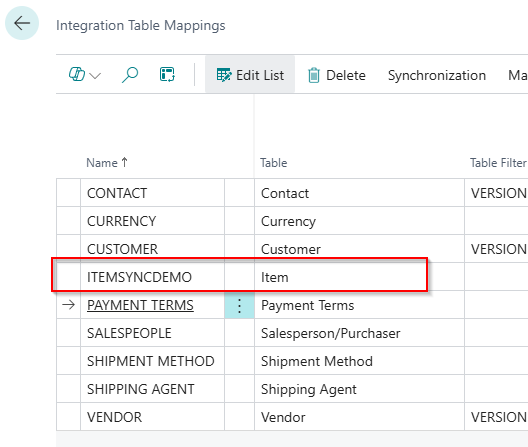
Once completed, data should begin synchronizing between Business Central and Dataverse according to your specified mapping and direction.
Monitoring and Managing Synchronization
After setting up your synchronization, it’s important to monitor the process:
- Check the Integration Synchronization Jobs page to view synchronization status
- Review any errors that occur during synchronization
- Set up appropriate synchronization schedules based on your data update frequency needs
This approach requires more initial setup than virtual tables, but provides significant benefits in terms of offline data access, performance, and compatibility with the broader Microsoft ecosystem.
Conclusion: Making the Right Integration Choice for Your Business
Integrating Business Central with Dataverse opens up a world of possibilities for organizations looking to extend their business applications, enhance data accessibility, and create seamless cross-platform experiences. As we’ve explored throughout this blog post, both Virtual Tables and Data Synchronization offer powerful ways to bridge these systems, each with their own distinct advantages.
The choice between these integration methods isn’t simply about technical preferences—it’s a strategic decision that should align with your organization’s specific needs, resources, and future plans:
- Virtual Tables provide a straightforward, real-time connection that maintains Business Central as your single source of truth. This approach excels in scenarios where data consistency is paramount and your integration needs are relatively straightforward.
- Data Synchronization delivers enhanced performance, offline accessibility, and compatibility with tools like Microsoft Fabric. While it requires more initial setup and introduces data duplication, it offers significant advantages for complex data ecosystems.
Whichever path you choose, the integration between Business Central and Dataverse represents a significant step toward a more connected, efficient, and flexible business technology stack. By bringing your operational data into Microsoft’s common data platform, you’re not just connecting systems—you’re unlocking new possibilities for insights, automation, and innovation.
Remember that your integration strategy can evolve over time. Many organizations begin with Virtual Tables for specific, immediate needs, then gradually implement Data Synchronization for critical business processes that benefit from its advanced capabilities. The flexible nature of both Business Central and Dataverse allows you to adapt and refine your approach as your business grows and changes.
By thoughtfully implementing the right integration approach—or combination of approaches—you can create a cohesive data ecosystem that empowers your organization to work smarter, respond faster, and deliver more value to your customers.